

When to use service accounts
Create a service account
- Open your project in the Datum Cloud portal.
- Navigate to Service Accounts in the left sidebar.
- Select Create service account.
- Enter a lowercase name (e.g.
ci-deploy) and an optional display name.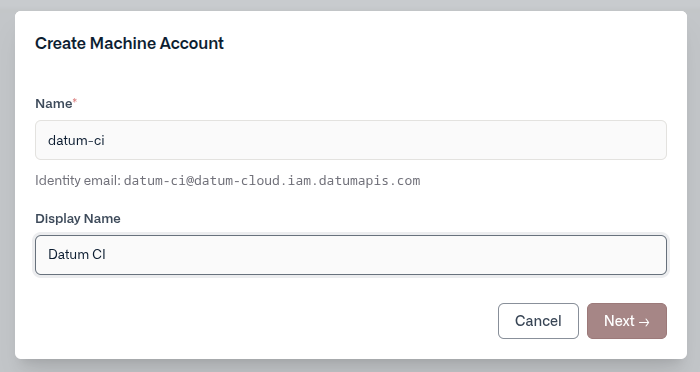
- Select a key type:
- Datum-managed — Datum generates an RSA key pair. The private key is shown once at creation time. Download it as a JSON credentials file before closing the wizard.
- User-managed — You provide your own RSA public key in PEM format. Datum stores only the public key and never sees your private key.
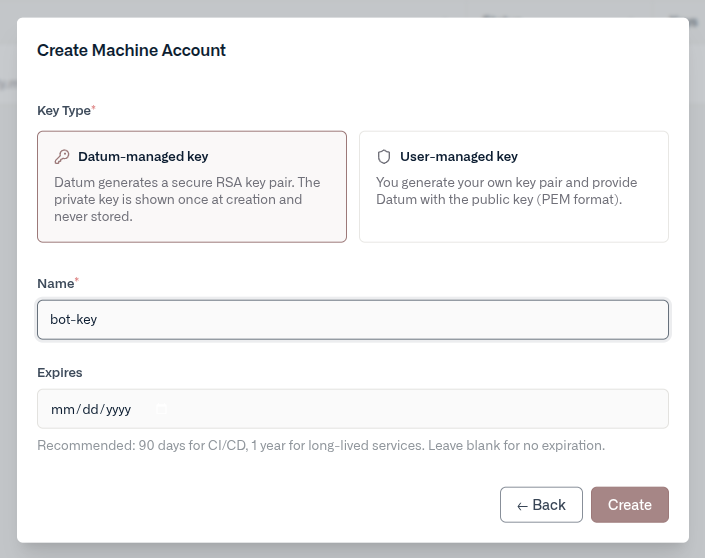
- Select Create. Once the account’s identity email is provisioned, your credentials are ready.
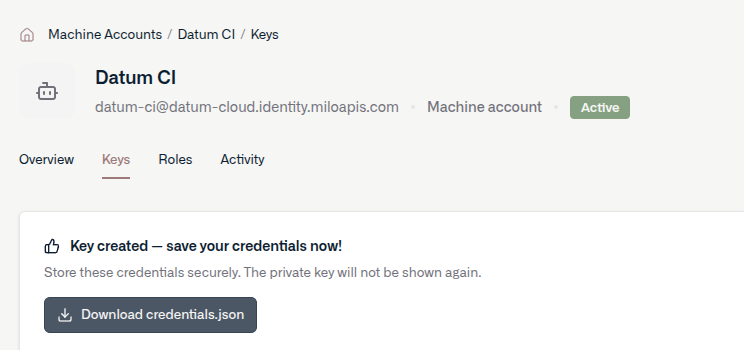
For datum-managed keys, the private key is only displayed once. Download the credentials file before closing the wizard — it cannot be recovered later.
Manage keys
Open a service account and navigate to the Keys tab to add or revoke keys.- Add a key — create an additional datum-managed or user-managed key at any time.
- Revoke a key — immediately invalidates the key. Any tokens issued with it will stop working at expiry.
Assign roles
Service accounts are IAM principals like any other member. Assign roles from the Roles tab on the account’s detail page, or from Settings → Members in your project or organization.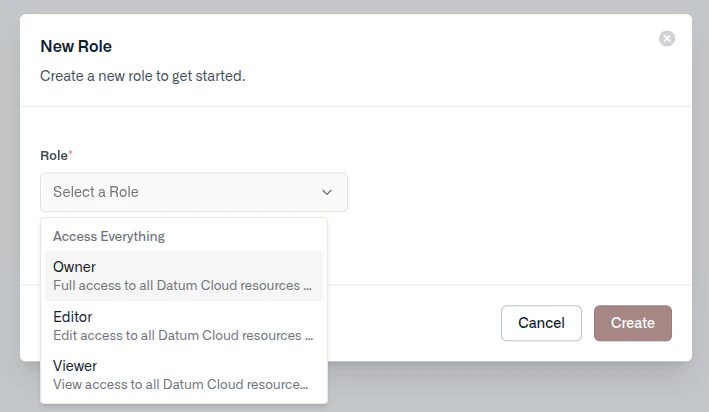
Disable or delete an account
- Disable — suspends authentication without removing the account or its keys. Re-enable at any time from the Overview tab.
- Delete — permanently removes the account and revokes all associated keys. This cannot be undone.
Using credentials
After creating a service account, you’ll have a credentials file to use for authentication.Credentials file format
When you create a datum-managed key, Datum returns a JSON credentials file:datumctl
GitHub Actions
Store the contents of the credentials file as a repository or organization secret (e.g.DATUM_CREDENTIALS), then write it to disk in your workflow:
Kubernetes
Create a Kubernetes secret from the credentials file:Environment variable
Any tool or SDK that respectsDATUM_CREDENTIALS_FILE will authenticate automatically when the variable is set: